---
canonical: https://amplience.com/developers/docs/platform/content-types/build-banner/
title: Get started in 5 minutes
- Developer (new platform)
description: Create a banner content type with the assistant, from a sketch or by hand, publish a banner and render it with JavaScript or React.
platform_badge: next-gen-app
how_to:
name: "Build your first banner with Amplience CMS"
description: "Create a banner content type, publish a banner, and render it with the Content Delivery SDK in JavaScript or React."
total_time: "PT15M"
steps:
- name: "Create the banner content type"
text: "Describe the banner to the assistant, upload a sketch, or paste a schema to create a content type with headline, strapline, image and call to action properties."
anchor: "step-1-create-the-banner-content-type"
- name: "Create and publish a banner"
text: "Create a banner from the content type, give it the delivery key get-started-banner, and publish it."
anchor: "step-2-create-and-publish-a-banner"
- name: "Render the banner"
text: "Install the Content Delivery SDK, add your hub name, and render the banner with JavaScript or React."
anchor: "step-3-render-the-banner"
audience: Developer
date_published: 2022-08-25
date_modified: 2026-09-30
image: https://cdn.media.amplience.net/i/ampproduct/banner-result?w=1200&h=630
image_width: 1200
image_height: 630
---
{/* The tutorial code is content managed. Each file is a SimpleText item with this content key. */}
# Build your first banner
In about 15 minutes you'll create a banner content type, publish a banner, and render it on a page with JavaScript or React. This is what you'll end up with, using your own image and text:
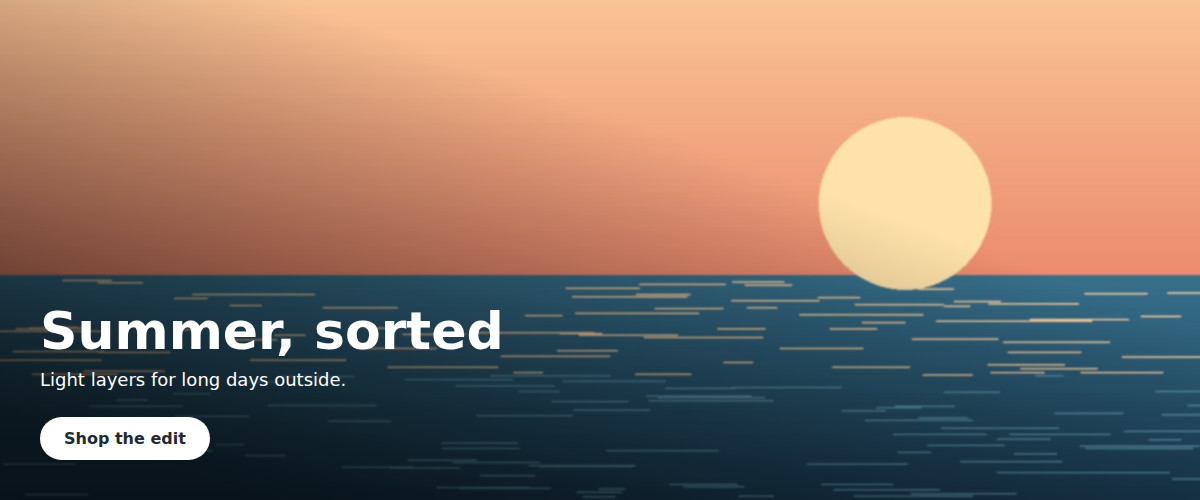
You'll need an Amplience account. If you don't have one yet, [start a free Developer Trial](https://amplience.com/developer-trial/), or skip to [step 3](#step-3-render-the-banner) and try the code with our sample banner.
## Step 1: Create the banner content type
A content type decides which fields authors fill in when they create content. The banner has six properties:
| Property | Type | Used for |
| ----------- | --------------------------- | -------------------------------------- |
| `headline` | Text, required | The main heading |
| `strapline` | Text | The line under the heading |
| `image` | Image from Amplience DAM, required | The background image |
| `imageAlt` | Text | Describes the image for screen readers |
| `ctaLabel` | Text | The button label |
| `ctaUrl` | Text (URL) | Where the button goes |
The code in step 3 expects these names. If your content type ends up with different ones, that's fine. You can [generate code for it](#generate-code-for-your-content-type) or change [one function](#if-your-property-names-are-different) yourself.
Choose how you want to create it:
{/* TODO(docs): confirm the exact UI labels for the assistant and design upload entry points. */}
1. In Amplience CMS, open **Development > Content type schemas** and choose **Create with assistant**.
2. Paste this prompt:
```text
Create a content type called "Get started banner" for a full-width hero banner.
Use exactly these property names, all at the top level with no nested objects:
- headline: text, required, up to 60 characters
- strapline: text, optional, up to 120 characters
- image: an image from Amplience DAM, required
- imageAlt: text, optional, alt text that describes the image
- ctaLabel: text, optional, the button label, up to 30 characters
- ctaUrl: text, optional, a URL the button links to
```
3. Check the suggested properties against the table above, then save and register the content type.
1. Save the banner sketch to your computer. Each part of the banner is labeled with the property name the code expects.
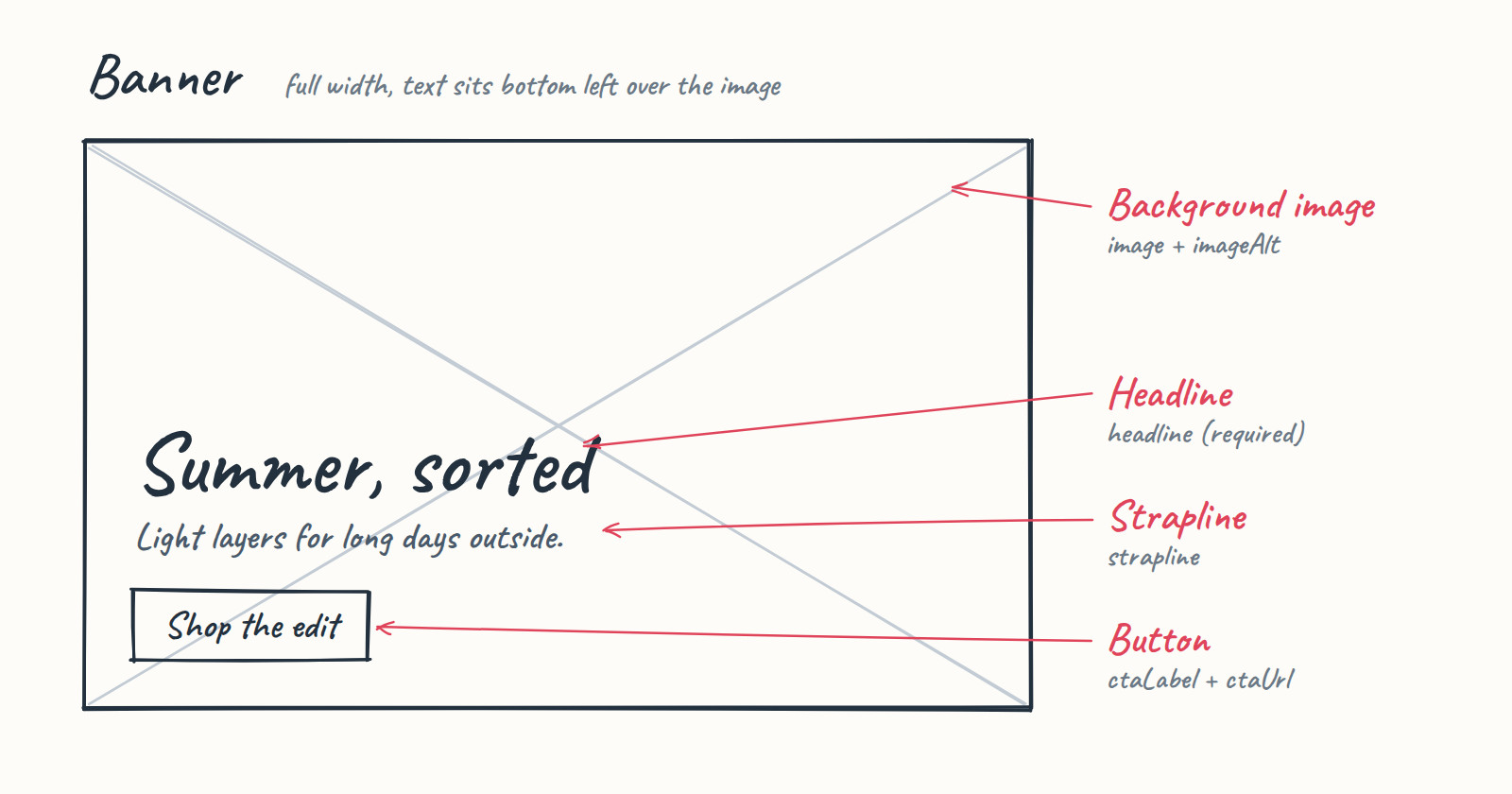
Open the banner sketch, then save the image.
2. In Amplience CMS, open **Development > Content type schemas**, choose **Create from design** and upload the sketch.
3. Add this instruction so the assistant uses the labels on the sketch:
```text
Call it "Get started banner". Use the property names written on the sketch, keep them at the top level, and make headline and image required.
```
4. Check the suggested properties against the table above, then save and register the content type.
You can also upload your own sketch or a design export. Expect the property names to differ from the table, and adjust the code as shown in [Make it yours](#make-it-yours).
1. In Amplience CMS, open **Development > Content type schemas** and choose **Create schema**.
2. Choose **Code**, paste the schema below and save it.
3. From the **Save** menu, choose **Register as content type**. Name it "Get started banner", choose the repository to add it to, and save.
Banner schema
If you use your own schema ID, keep it. Nothing in the rendering code depends on it.
## Step 2: Create and publish a banner
1. Open **Content**, choose **Create content** and select **Get started banner**.
2. Fill in the fields. Use your own text or these values:
| Field | Value |
| ----------- | ------------------------------------- |
| `headline` | Summer, sorted |
| `strapline` | Light layers for long days outside. |
| `imageAlt` | Describe the image you choose |
| `ctaLabel` | Shop the edit |
| `ctaUrl` | https://example.com/summer |
3. Choose any image from Amplience DAM. The text is white over a dark fade, so most photos work.
4. Save the banner. From the **Save** menu, choose **Delivery key**, enter `get-started-banner` and save.
5. Choose **Publish**.
You'll also need your hub name. You'll find it in the content item's properties, as part of the delivery URL, or under **Settings > Properties**.
## Step 3: Render the banner
Install the Content Delivery SDK:
```bash
npm install dc-delivery-sdk-js
```
The window below runs the code against our sample banner. Change `HUB_NAME` to your hub name to see your own banner. If you used a different delivery key, change `DELIVERY_KEY` too. The banner updates as you type.
When it works, copy the code for your framework, along with the CSS, into your project.
Add an element for the banner and load the CSS and script on your page:
```html
```
The import from `dc-delivery-sdk-js` needs a bundler such as Vite. Without one, use the [pre-bundled SDK](https://github.com/amplience/dc-delivery-sdk-js).
Add the component wherever you want the banner:
```jsx
export default function App() {
return ;
}
```
The numbered comments in the code match these steps:
1. **Connect.** `ContentClient` connects to your hub.
2. **Map.** `toBanner` picks the fields the banner needs from the content item. The SDK turns the `image` property into an object with a URL builder, so `image.url().width(1600).build()` returns an image resized for the banner.
3. **Render.** The markup uses each field. Optional fields are left out when they're empty.
4. **Fetch.** `getContentItemByKey` retrieves the published banner by its delivery key.
{/* TODO(docs): publish a banner with delivery key get-started-banner on the docsportal hub, using the new schema. */}
## Make it yours
### Generate code for your content type
If your content type has different properties from the table in step 1, or you've added your own, paste its schema below and Ask AI will write the rendering code for it. You'll find the schema in the schema editor's code view. You can also paste a content item, logged with `console.log(JSON.stringify(item.body))`.
Add your hub name and delivery key too if you have them. You can leave them blank and fill them in later. When Ask AI replies, its code is loaded into the [window in step 3](#step-3-render-the-banner), replacing the component and the CSS. If you gave your hub name and delivery key, the window renders your content straight away. Otherwise, change `HUB_NAME` and `DELIVERY_KEY` in the code. If you'd rather keep what was in the window, choose **Undo**. Follow-up requests in the same Ask AI conversation, such as changing a color, are loaded the same way. It follows the same structure as the tutorial code, so the rest of this section still applies to it.
### If your property names are different
The assistant may name or group properties differently from the table in step 1. Only `toBanner` needs to change, and the markup stays the same. Find the line for the field and point it at your property:
| Your content type has | Change the line in `toBanner` to |
| ------------------------------------- | --------------------------------------------------------- |
| `title` instead of `headline` | `headline: content.title,` |
| A `cta` object with `label` and `url` | `ctaLabel: content.cta?.label,` and `ctaUrl: content.cta?.url,` |
| A `background` object with `image` and `alt` | `imageUrl: content.background?.image?.url().width(1600).build(),` and `imageAlt: content.background?.alt ?? '',` |
To see exactly what your content item returns, log it before mapping: `console.log(item.body)`.
### Add a field
Say you want a short label above the headline, such as "New season". Adding a field takes three changes.
1. **Add it to the content type.** Ask the assistant: *Add an optional text property called eyebrow, up to 30 characters.* Or add it to the schema:
```json
"eyebrow": { "title": "Eyebrow", "type": "string", "maxLength": 30 }
```
2. **Map it** in `toBanner`:
```js
eyebrow: content.eyebrow,
```
3. **Render it** above the headline:
```js
${banner.eyebrow ? `
${safe(banner.eyebrow)}
` : ''}
```
```jsx
{eyebrow &&
{eyebrow}
}
```
Add `eyebrow` to the props that `BannerView` destructures.
Then add a style for it to `banner.css`:
```css
.banner__eyebrow {
margin: 0 0 0.5rem;
font-size: 0.875rem;
font-weight: 600;
}
```
To remove a field, delete its line from `toBanner` and from the markup.
## If the banner doesn't appear
**The item isn't found.** Check that the banner is published, that the delivery key matches `DELIVERY_KEY` exactly, and that `HUB_NAME` is your hub name. A new publish can take a few seconds to reach the Content Delivery API.
**The text appears but the image doesn't.** Check that the banner has an image selected. If your image property has a different name, update the `imageUrl` line in `toBanner`.
**A field is missing.** Log `item.body` and compare the property names with `toBanner`.
## Next steps
- [Visualization](https://amplience-developer-portal-git-develop-amplience.vercel.app/developers/docs/dev-tools/guides-tutorials/visualizations) shows authors their banner as they edit it, before it's published.
- [Content previews](https://amplience-developer-portal-git-develop-amplience.vercel.app/developers/docs/dev-tools/guides-tutorials/content-previews) show content as it will appear on a future date.
- [Technologies](https://amplience-developer-portal-git-develop-amplience.vercel.app/developers/docs/technologies) has sample code for other frameworks.