Get started
The new version of the Amplience Content Operations Platform brings content, assets, flows and reviews together in one interface, with the Assistant built in. Create content, find the images that go with it, run a flow to process them, approve the results and publish, all without switching tools.
This page shows you around the platform’s areas, each for a different part of your work, and points you to the best place to start, whatever your role.
Get to know the platformLink copied!
Spotlight: the AI assistant
Working with content
Create and manage content
Write and manage the content behind your websites and apps. You can:
- Find your content in the Content library
- Create, edit, localize and publish content for your audience
- Track statuses, assignees and revision history
- Ask the Assistant to help with content tasks
Wherever you’re working, you can hand work to the Assistant, and use the workbench to keep several items open in each area, switch between them, and see at a glance which ones need attention.
Your first stepsLink copied!
- Creating content? - Start with Content and Assets
- Modeling content or working with the APIs? - Start with Developer
- Automating tasks with flows? - Start with Flows
- Setting up the platform? - Start with Set up and configuration
Hand work to the AssistantLink copied!
The Assistant does the work for you. Tell it what you need in plain language, and it finds, creates or edits items. It then lets you know what it's done, so you can review the changes before you save.
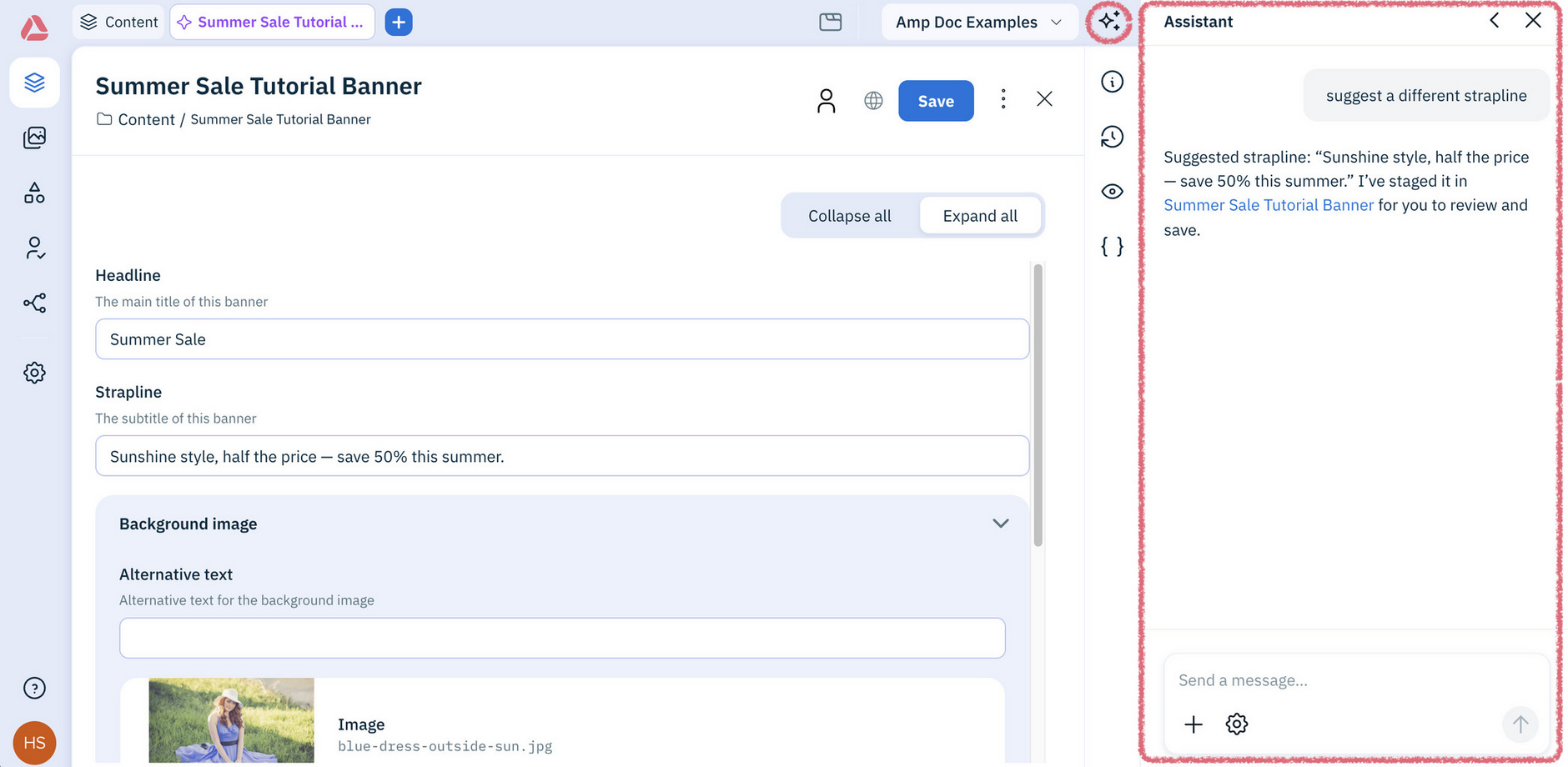
The Assistant works on the items you select, or the ones it finds for you, so you can update many items at once instead of one by one. To get started, try asking it to:
- "Find all the summer campaign banners that haven't been published yet"
- "Fill in the empty fields on this content item"
- "Write alt text for the selected images"
- "How do I create a content item?"
- "Translate the Spring 2027 lookbook into French and German"
- "Find me all the flows for adjusting images"
The more specific your request, the better the result. Name the item, folder or campaign you mean, and say what you'd like changed.
Working in the workbenchLink copied!
The workbench keeps all the items you're working on open in one place, whether they're content items, assets, reviews or flows. Each item opens in its own tab, so you can work on several at once and switch between them in a click.
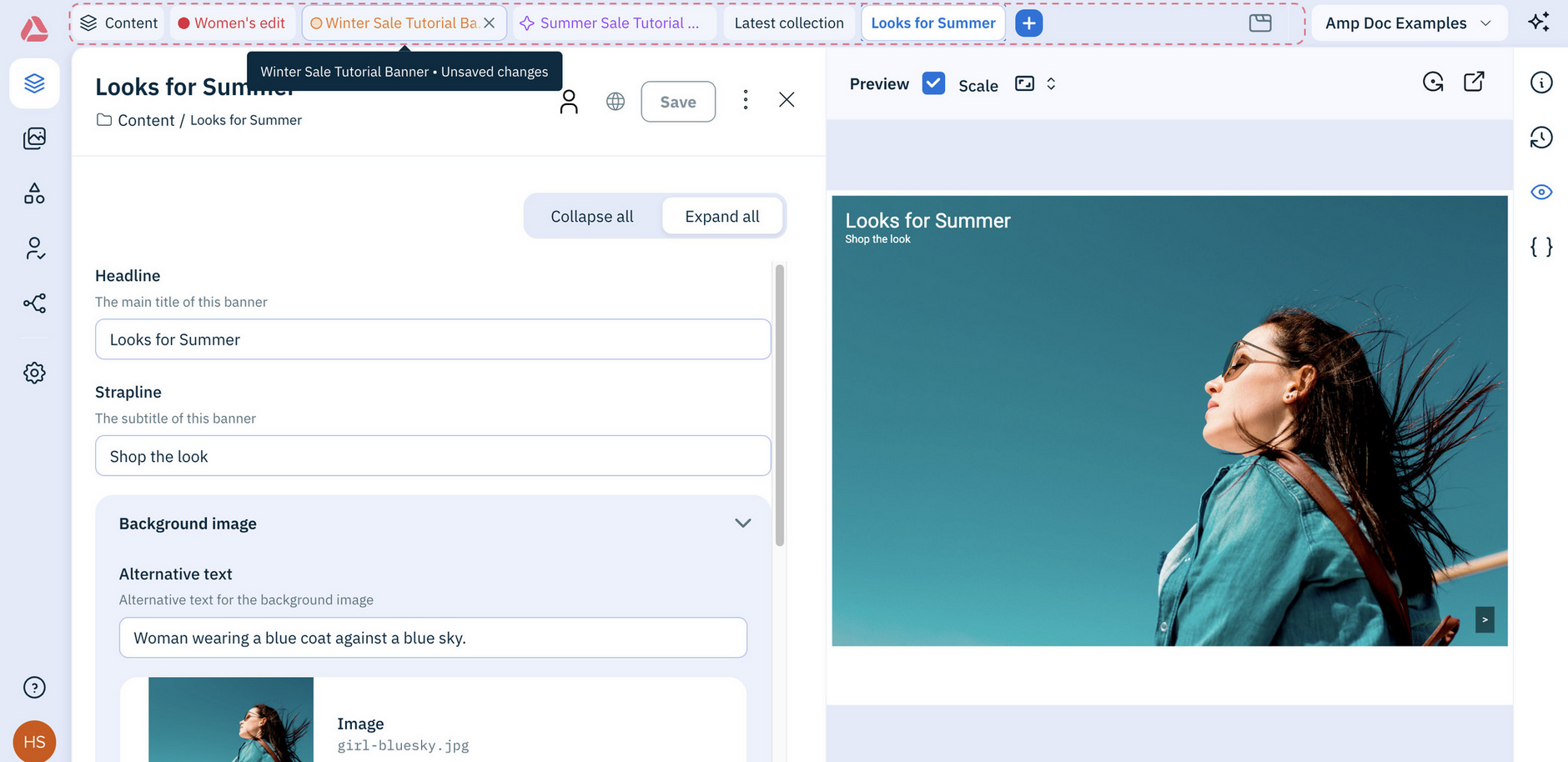
Each item opens in its own tab, so you can work on several at once and switch between them in a click. The tab for the item you're currently viewing has its name in bold, and icons on each tab show you the item's status:
- Red dot - The item has invalid content, which you need to fix before you can save it
- Orange dot - You've created or changed the item since it was last saved
- Star - The Assistant created or changed the item, so you can review what it's done before you save
- No icon - The item hasn't been changed since it was last saved
Tip
To see what an icon means, hover over it.
Click the Manage tabs icon to search your open items, or to close them all at once when you’ve finished working.
Already using the classic platform?Link copied!
Your content, assets and settings are already here, and you can keep using the classic platform alongside the new one. To see what's changed, go to What's new.
Get helpLink copied!
- Ask AI - Ask questions about the docs in plain language, so you don't have to search through pages.
- The Assistant - Ask how to do something while you work, or ask it to do the task for you.
- FAQs - Find answers to common questions about the new platform.