Assets
Every piece of content needs the right images, video and other media to go with it.
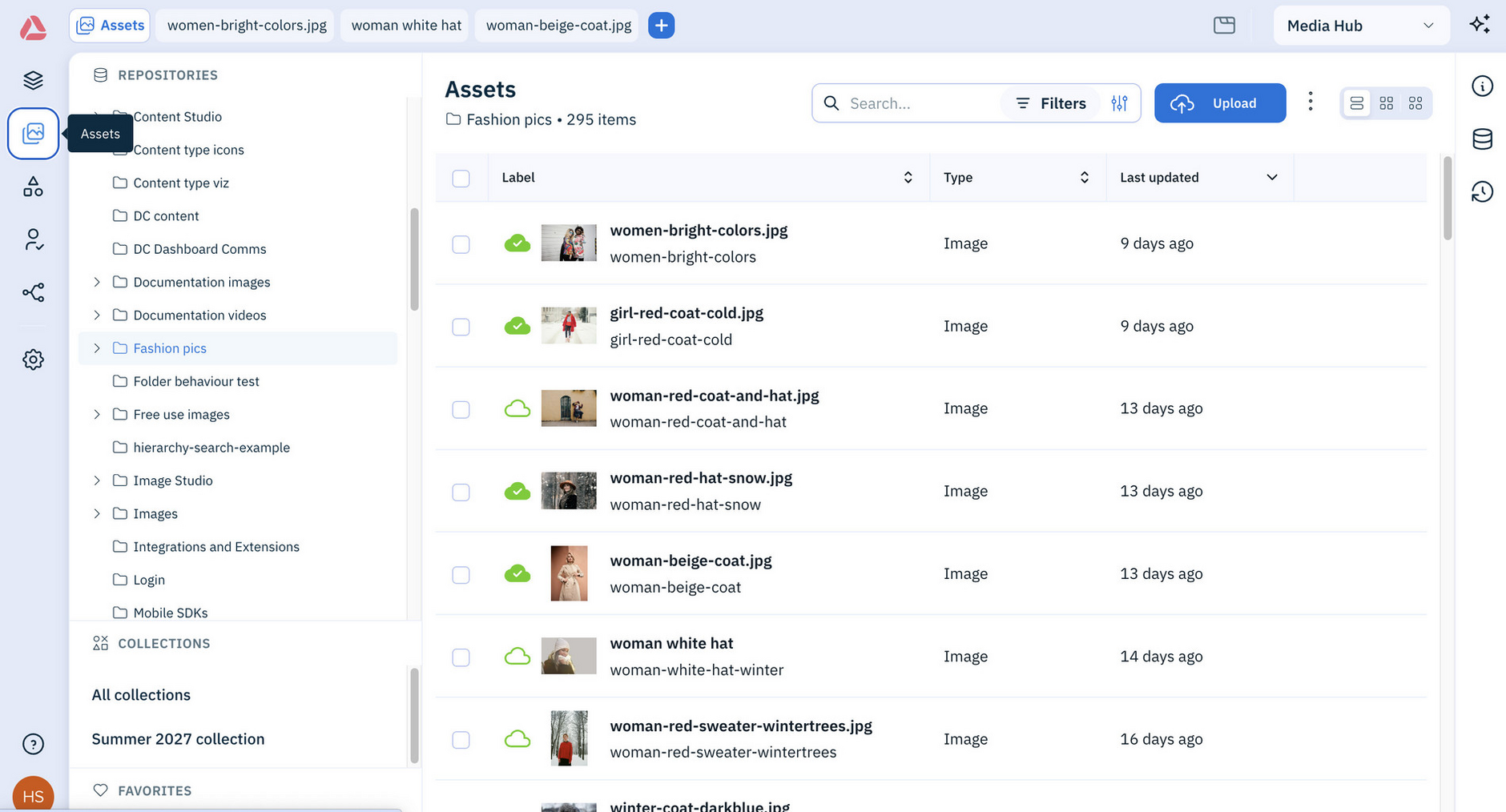
In the Amplience Content Operations Platform, you manage these in Assets, where you upload, organize, edit and publish your assets. All your assets are in the Assets library, where you can browse, search and filter them, and open any asset to see its details.
How assets workLink copied!
Each asset is stored once and referenced by the content that uses it. Update an image and every content item that uses it gets the new version, with no duplicate copies to track down.
Assets live in folders within your asset repositories. To group related assets from different folders, such as everything for a seasonal campaign, add them to a Collection.
Good descriptive information makes assets easier to find and more accessible. You can enrich assets, for example by adding alt text, tags and a point of interest to each image by hand, or your system can be configured to add them automatically on upload.
When an asset is ready, publish it so it can be delivered to your website, app or anywhere else it's needed.
Get started with assetsLink copied!
The best way to begin is to take one asset from start to finish. Upload an asset, check its details, then publish it. Once you've done it by hand, try asking the Assistant to describe and tag a batch of images for you.
Let the Assistant manage assetsLink copied!
The Assistant takes care of the repetitive work, so you spend less time tagging, sorting and searching. Tell it what you need in plain language, then review what it's done before you save. It works on the assets you select or the ones it finds for you, so you can update many assets at once instead of one by one.
Try askingLink copied!
Not sure where to start? Here are a few things you can ask the Assistant:
- "Find all the product images uploaded this week that don't have alt text"
- "Write alt text for a set of images"
- "Add tags or metadata to assets, based on what's in them"
- "Move assets into a folder or add them to a collection"
- "Find the images used in a content item"
The Assistant works on the assets you select or the ones it finds for you, so you can update many assets at once instead of one by one.
Already using the classic platform?Link copied!
All your existing assets can be found through the new platform, and you can still use the classic platform alongside the new one.
The new platform also lets you:
- Apply tags and video transcoding when you upload manually, not just with batch uploads
- Queue files for several folders when you upload manually, then upload them all at once
- See assets at a glance, with thumbnails in the list view and a new gallery view
- Edit images without leaving Amplience, for example to remove a background, erase part of an image or add hotspots
- Get AI-suggested tags and alt text, then choose what to keep
- Launch a flow for the assets you select
You also get everything that's new across the platform, including the Assistant, the Workbench, Collections and Favorites. For a full rundown, see What's new.
For developersLink copied!
If you're building the experiences that use assets, head to Getting set up to setup templates and transcoding, or the API docs to manage assets.
FAQLink copied!
What's changed in the new platform?Link copied!
- Asset stores are now called asset repositories