Assets settings
Asset settings control how your assets are stored, processed and delivered. Once set up, they help make assets ready to use, without anyone having to adjust them by hand.
In SettingsLink copied!
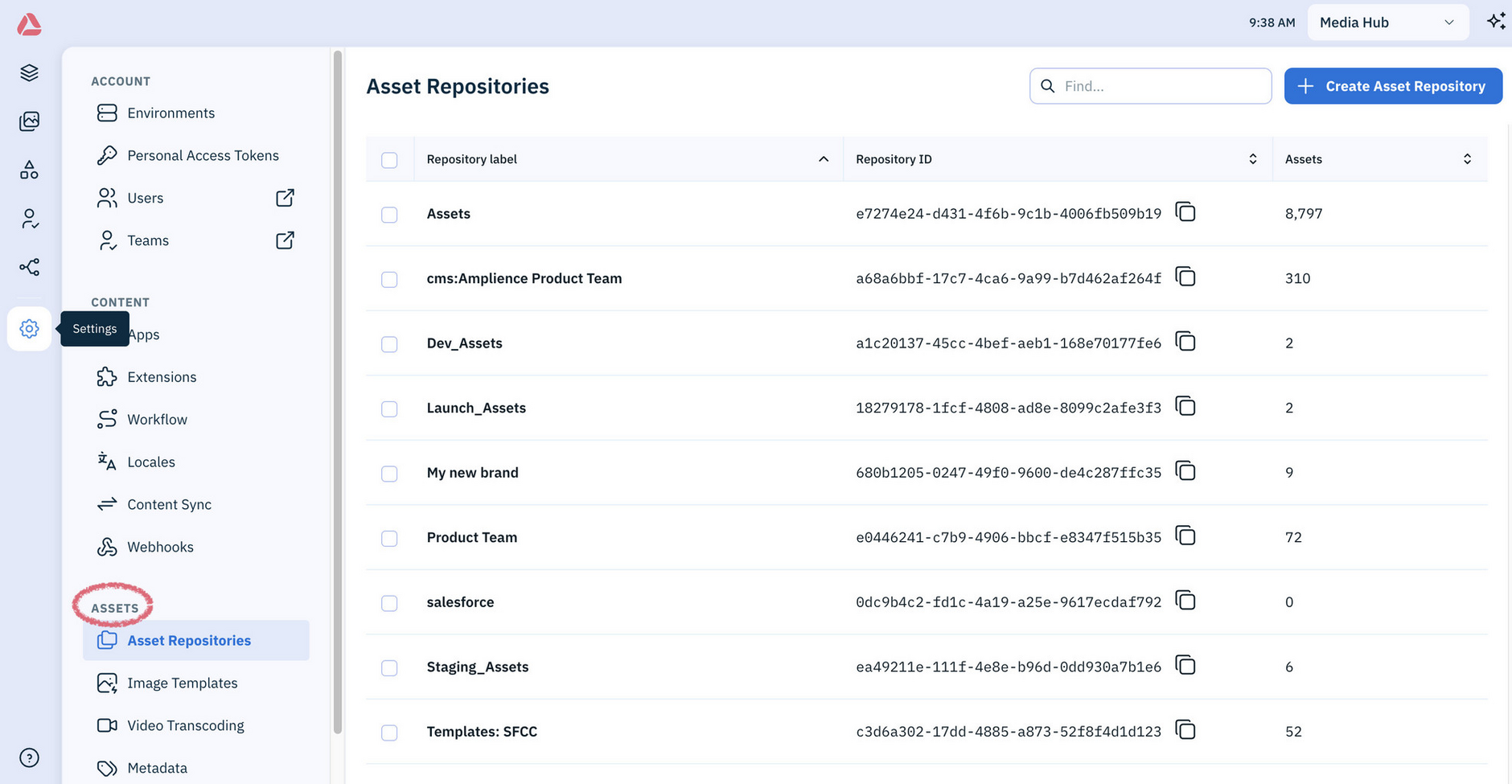
The Assets section of Settings includes:
- Asset repositories - Create and manage the repositories that hold your assets.
- Image templates - If your account includes Amplience Dynamic Media, create and manage reusable sets of image transformations, such as sizes and crops.
- Video transcoding profiles - View your profiles. To create or edit them, use the classic platform. See Video transcoding profiles.
- Metadata - View your metadata. To create or edit it, use the classic platform. See Asset metadata.
Use your own domain for media
By default Amplience Dynamic Media, serves media from an Amplience domain, such as cdn.media.amplience.net. You can use your own domain instead, so media is requested from a URL like media.yourdomain.com. See CNAMEs
Setup with Amplience SupportLink copied!
Some asset tasks, such as video transcoding, can be set up for your account to run automatically when assets are uploaded.
Amplience Support can also set up other services for your account, such as scheduled exports of list of assets. To set up automatic processing or any of these services, contact Amplience Support, as they aren't available in Settings.
Processing on uploadLink copied!
Processing jobs run automatically when assets are uploaded and ingested, so they're ready to use without anyone editing them by hand. For example, a processing job can:
- Transcode videos into the formats you need
- Tag images with what's in them, using image recognition
- Generate alt text for images
You can see your processing jobs in the classic platform, but not yet in the new platform. See Processing jobs.
Export lists of assetsLink copied!
Manifests export a list of the assets in your account as a text file, on a regular schedule such as daily or weekly. See Manifests.
Use your own domain for mediaLink copied!
By default, Amplience Dynamic Media serves media from an Amplience domain, such as cdn.media.amplience.net. You can use your own domain instead, so media is requested from a URL like media.yourdomain.com. See CNAMEs.