Content settings
Content settings control the tools, statuses and locales your team uses when creating content. Most are set up once by an administrator, then updated as your needs change.
In the Content section of Settings, you can configure extensions, workflow statuses and locales.
Note
To create or manage content repositories, use the classic platform. See Content repositories.
ExtensionsLink copied!
Register extensions to add custom field editors, content editors and dashboards, so your team can work with content in a way that fits your processes and integrations.
Workflow statusesLink copied!
Workflow statuses let teams track content as it moves through your production process, such as review or translation. You can create up to 100 statuses per hub, each with its own label and color, and assign them to content items and slots.
Statuses are labels only. They don't block any actions, for example publishing, or enforce an order of steps.
Before you start
If Workflow statuses isn't available in your Settings, contact your Customer Success Manager to enable it on your hub.
Add a workflow statusLink copied!
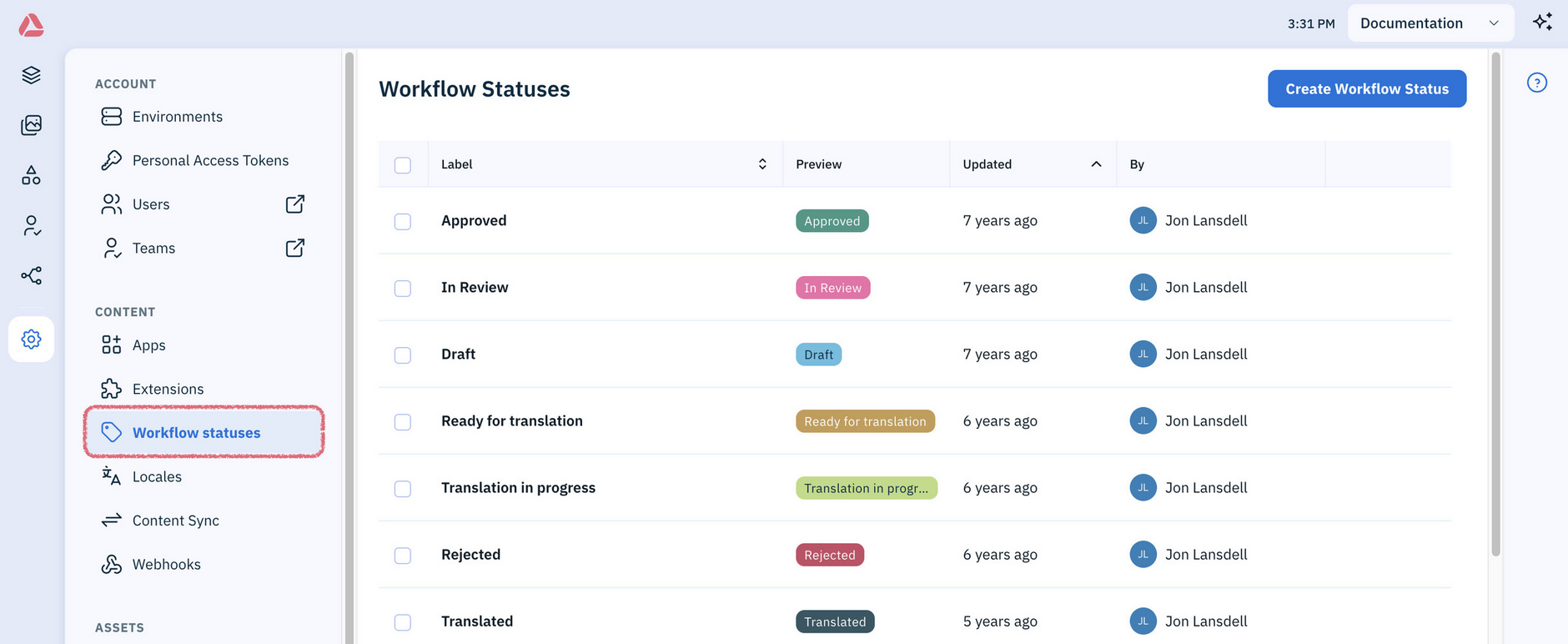
In Settings, choose Workflow Statuses from the Content section.
On the Workflow Statuses page, click Create Workflow Status. Enter a label and choose a color, then click Create.
Tip
Developers can set up webhooks to send notifications when content status changes.
Edit a workflow statusLink copied!
You can change the label or color of a status. Any changes you make are applied to all content items and slots that already use the status.
Note
You can't currently delete a workflow status.
LocalesLink copied!
Locales are associated with hubs and are used for both field level and content item localization. See Localizing content.
A locale is a combination of a mandatory language code and optional country code. Locales can also have optional labels, which let you give them meaningful, easily identifiable names.
Locale labelsLink copied!
A locale label is an optional description that makes a locale easier for your content teams to recognize in a list. Without one, the locale code is shown instead.
The field accepts emojis, so you can use your operating system's emoji picker (for example, right-clicking in the field).
Tip
Labels also help when locales stand in for something other than language, such as brands. For example, if en is Acme and en-GB is Globex, labelling them with the brand names is clearer than the codes alone.
Add a localeLink copied!
Before you start
Locales are hub-specific. Check which hub you're using in the top-right of the window.
In Settings, choose Locales from the Content section.
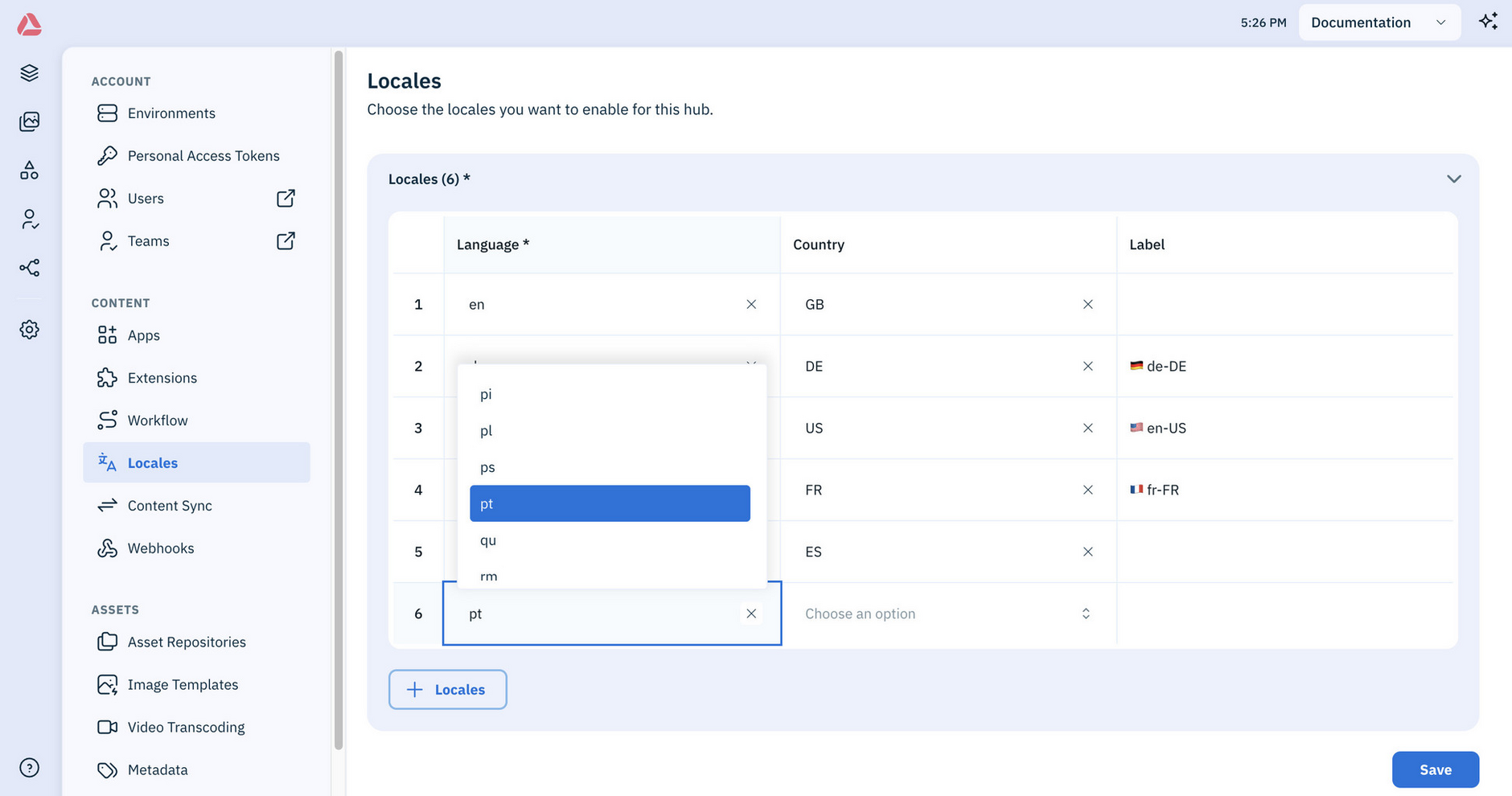
Click the Locales button and choose the language code and optionally, the country code and a label.
Note
The first locale you add becomes the master locale, which is used by default for cards and previews in the content library. You can't delete it or make a different locale the master, so choose it carefully. Every other locale can be added, edited and deleted.
Sometimes the same language needs different content in different countries. Portuguese for Portugal (pt-PT) and Portuguese for Brazil (pt-BR) are separate locales, so you set both a Language and a Country.
Tip
Using country flags in locale labels helps your team identify locales at a glance.
WebhooksLink copied!
Webhooks are set up in the classic platform. See Webhooks.