Track changes
Use workflow statuses, assignees and revision history to see where each content item is in your workflow, who’s working on it, and how it’s changed over time.
Set content workflow statusLink copied!
Statuses show where a piece of content has got to, and support workflows like translation. Your hub can have up to 100, each with its own label and color, and you can filter the library by status.
Info
Workflow statuses are configured in Settings by your administrator. See Workflow status.
To set the workflow status of a content item, choose the status option from the content item’s menu and select a status from the list.
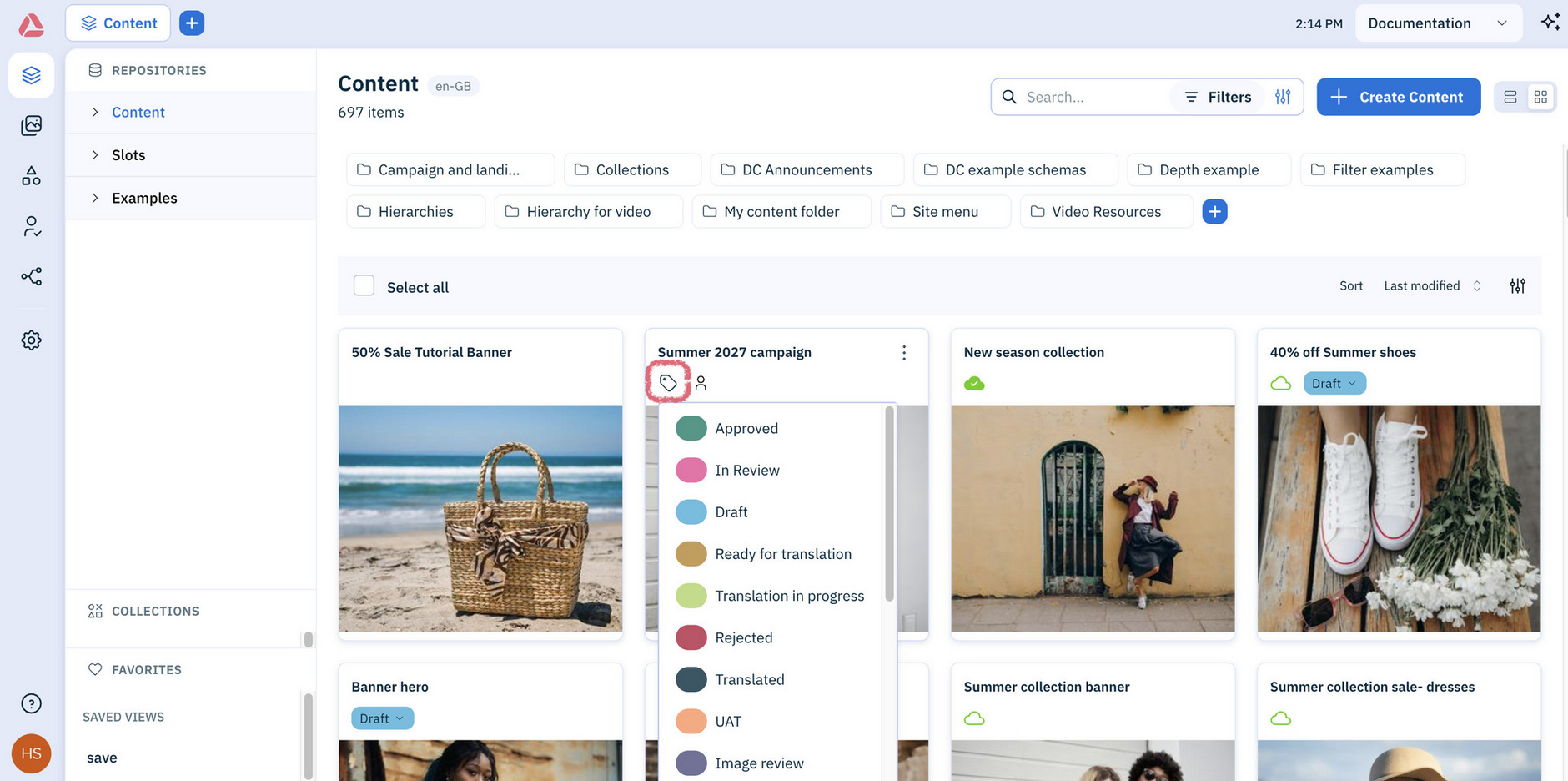
To update the status of several content items at once, select them and choose the Status option from the task bar at the bottom of the screen.
You can also ask the Assistant to set the status for you. For example: “Set the status of the summer sale banner to In review”.
Assign content to team membersLink copied!
Assign an item to yourself or to other people so everyone can see who's working on what.
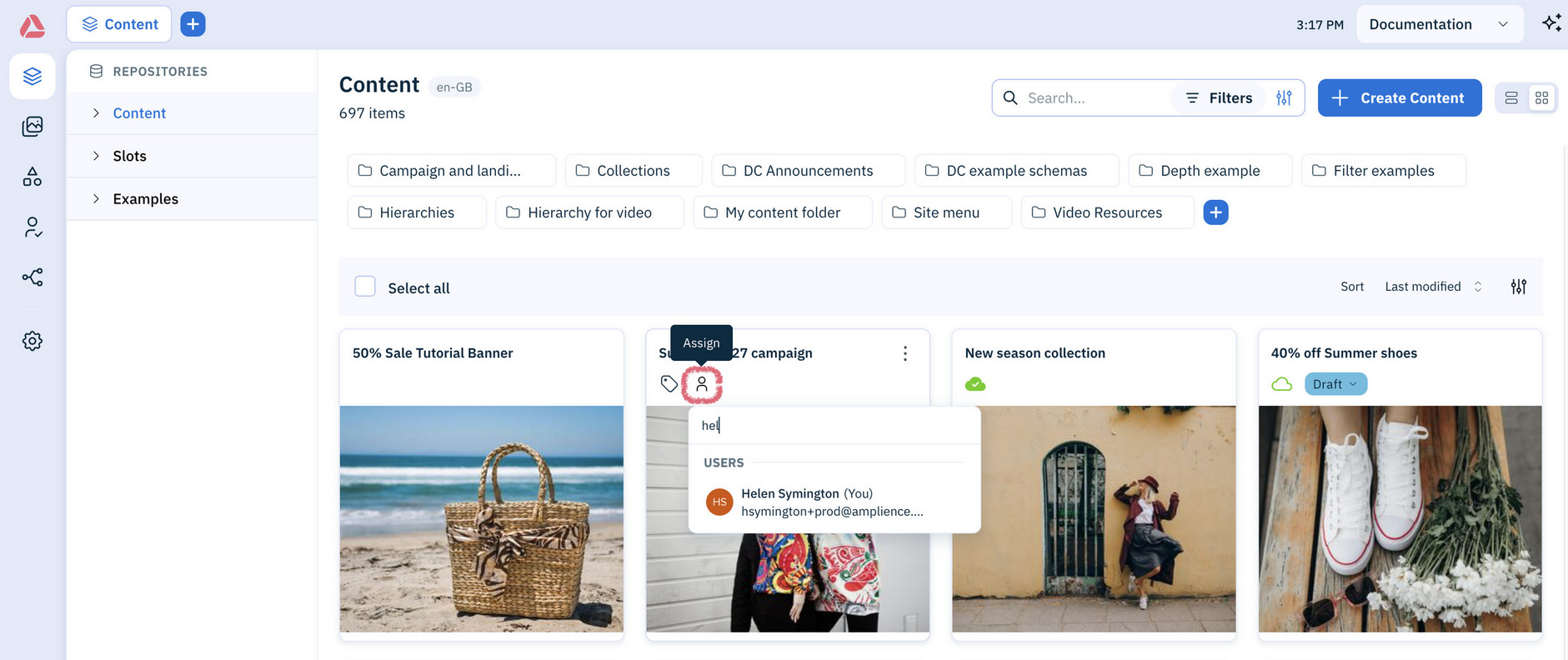
Assignees appear on the item in the library, in its properties, and in its revision history, and you can filter the library by assignee to focus on your own work. Assigning an item doesn't create a new version.
To assign a user to several content items at once, select them and choose the Assign option from the task bar at the bottom of the screen.
You can also ask the Assistant to assign users to content for you. For example: “Assign Joe Acme and Jane Acme to the Summer 2027 sale banner”.
Revision historyLink copied!
Every time you save a content item, a new version is created. Open the item and click the history icon to see every version, who changed it and when.
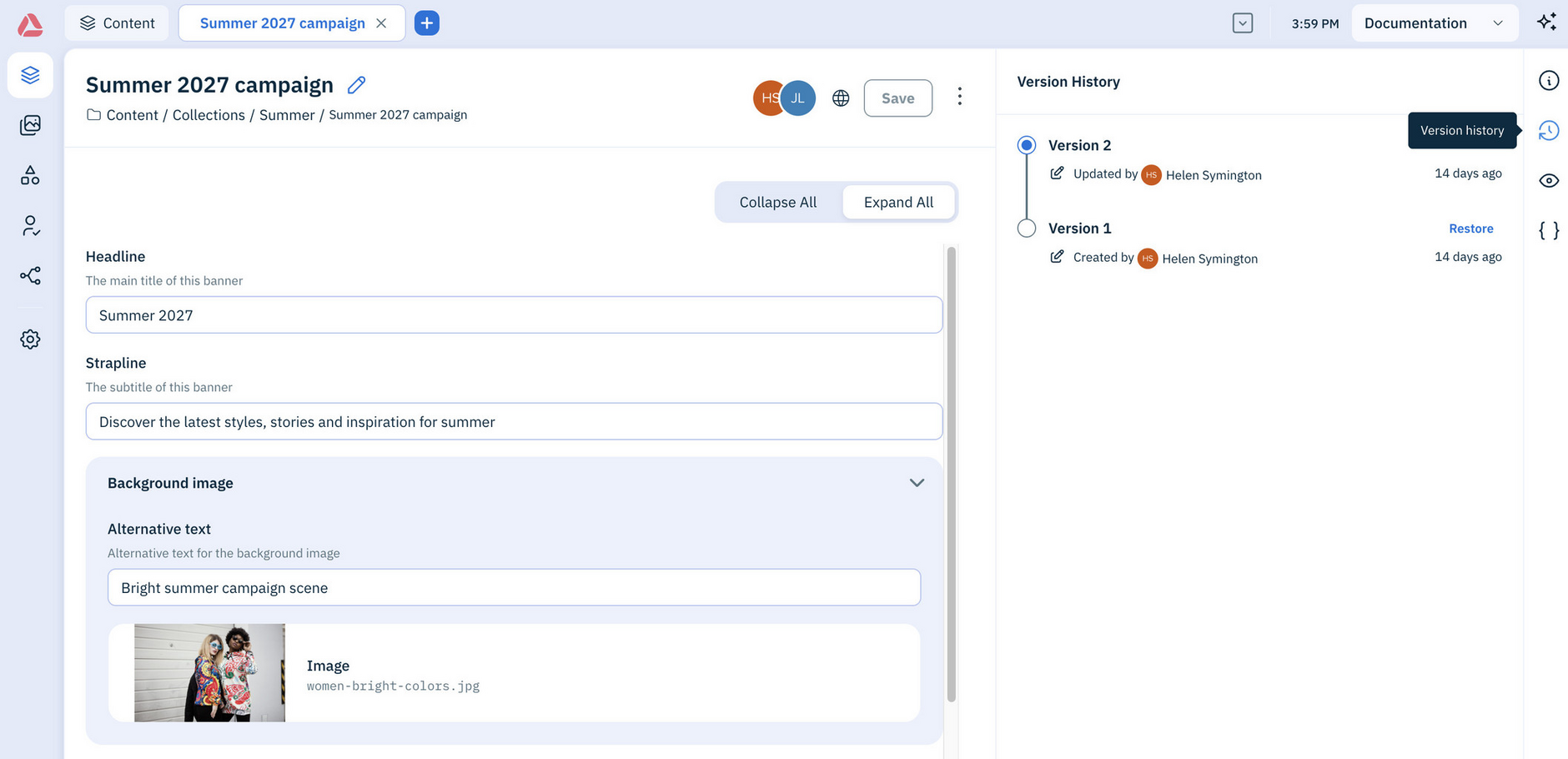
Select an earlier version to see the content exactly as it was, and click Restore to bring it back, which creates a new version rather than overwriting anything.