Work with the Content library
Find the content you need and keep it organized. Group related items into folders, filter and search to find items quickly, and archive content you've finished with.
Your Content libraryLink copied!
The Content library is where content teams spend most of their time. Go to Content to open it. You'll see everything in your current hub, which is named at the top of the window.
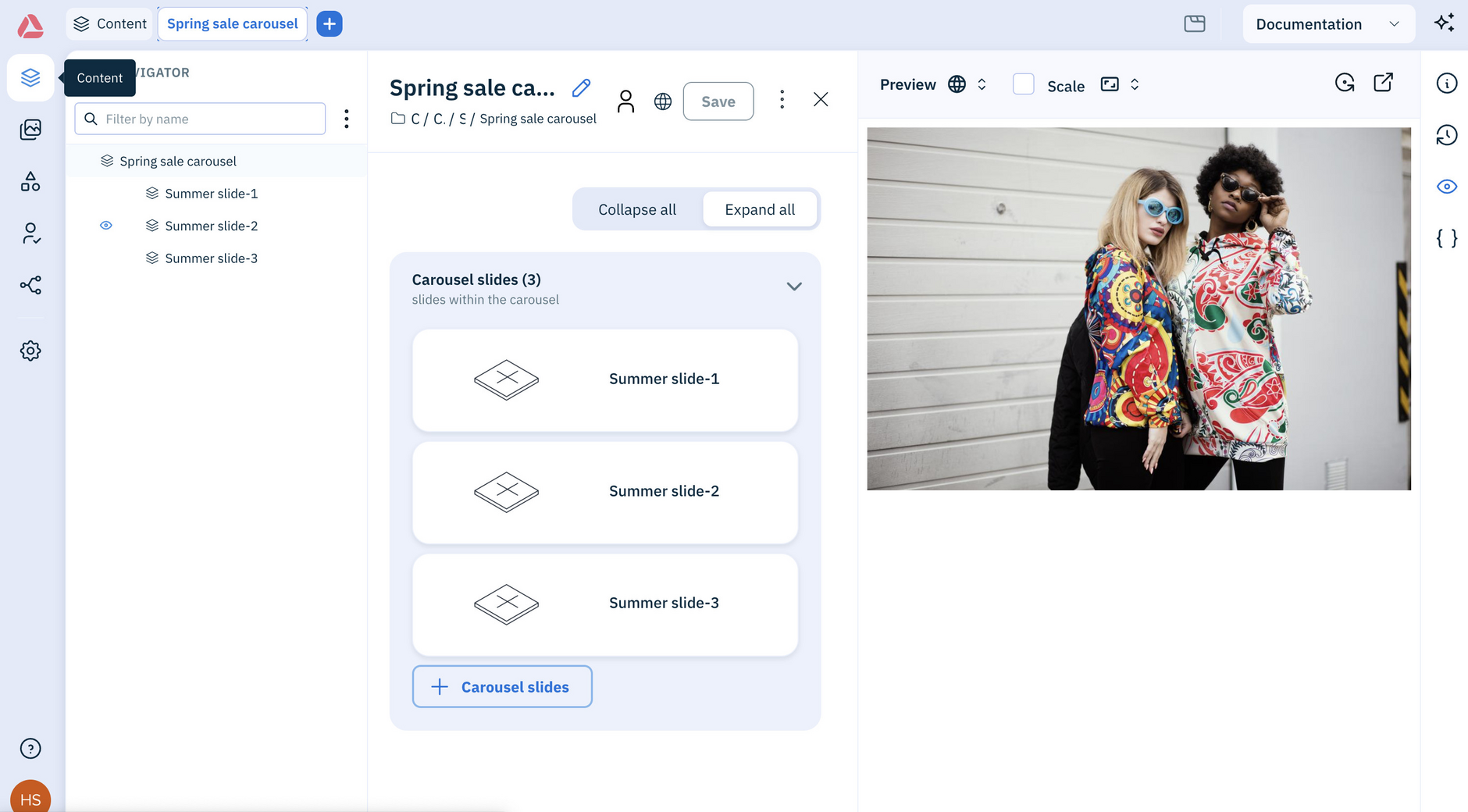
You can switch between grid and table view. Grid view shows the essentials on a card, such as name and publish status, while table view gives more detail, like the date created and the content type.
Every content item has a contextual menu for actions such as copying, publishing and archiving. To work with several items at once, select them and choose an action from the task bar at the bottom of the screen.
This video walks through browsing, searching and working with the Content library:
Organize contentLink copied!
Content lives in repositories, and you can add folders inside them to keep projects apart. Click a repository or folder to see what's in it.
Add and move foldersLink copied!
To add a folder, right-click a repository or folder and choose Add subfolder, or click the + icon to add one at the current level.
To move content, select one or more items and drag them into a folder.
Delete foldersLink copied!
To delete a folder, choose Delete from the folder's menu.
You can only delete empty folders. If a folder still has content in it, a message lets you know. Archive the content first, or move it to another folder or the top level of the repository, then delete the folder.
Archive contentLink copied!
Move content you've finished with to the Archive folder at the root of its repository. Choose Archive from an item's contextual menu, or select several items and choose Archive from the task bar at the bottom of the screen.
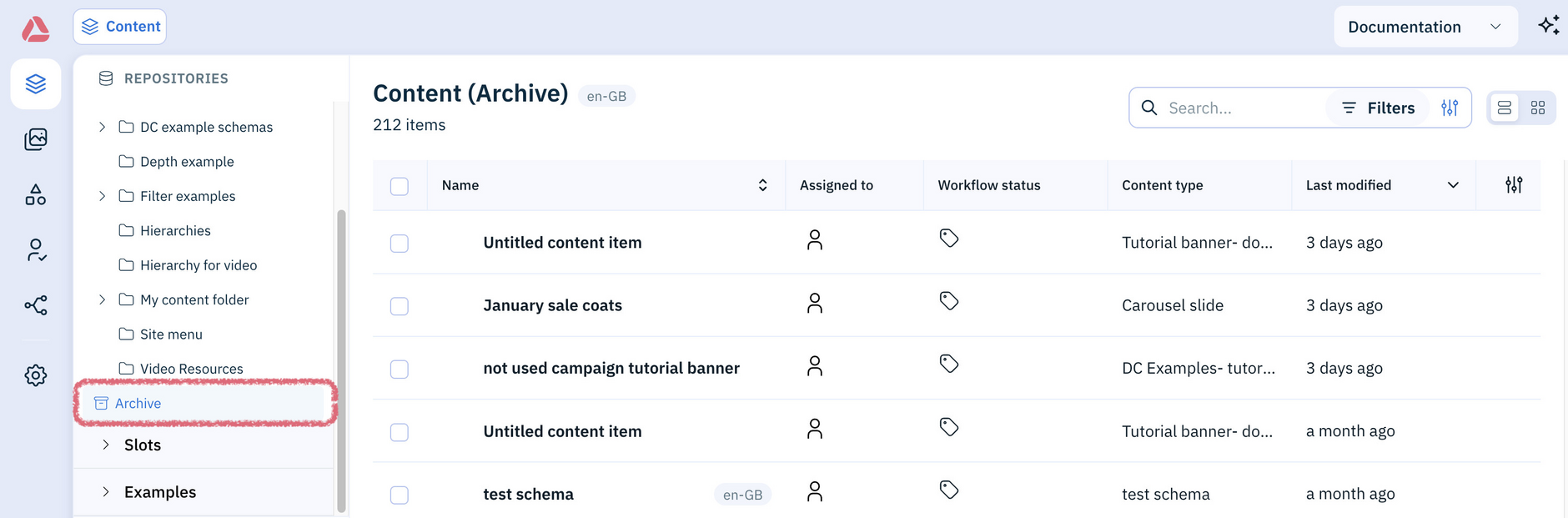
Archiving isn't deleting. Published content stays live, versions saved to editions stay available, and you can still view the item and its revision history. Archived content can't be edited, published or copied, and won't appear in search results.
To use archived content again, open the Archive folder and choose Unarchive from an item's contextual menu, or select several items and choose Unarchive from the task bar at the bottom of the screen.
Filter and searchLink copied!
As your content grows, use the filters to narrow down the list. Filtering before you search gives you less to search through.
A basic search looks in the name and body of your content, and in content IDs. To refine the results, add search parameters:
- Quotes change what you get. In a basic search,
"homepage banner"matches either word, which is looser than without quotes. With a parameter,label:"homepage banner"matches both words in the label, which is stricter - Exclude with a minus sign. Put
-in front of a term to leave it out
If it's a search you'll run again, save it as a favorite.