Image templates
An image template is a reusable set of Amplience Dynamic Media parameters, saved to your account and referenced by name in your image URLs. Using image templates has several advantages:
- Shorter URLs. Image URLs can quickly become long, especially with features like layers or point of interest. A template replaces that string of parameters with a single name.
- Consistency across images. Reference the same template in multiple image URLs and every image gets the same treatment.
- Changes without a code release. Update the template, republish it, and the new parameters apply everywhere the template is used. Your website code stays untouched.
For information about Dynamic Media parameters and to try them out with the interactive examples, see the Media Delivery API guide.
Transforming images with flows
Templates change how an image is delivered, leaving the original untouched. If you want to change the asset itself, such as cropping it or removing the background, use a flow instead. See Image actions.
Create an image templateLink copied!
Before you start
Image templates are hub specific. Check which hub you're using at the top right of the window.
-
In Settings, choose Image Templates from the Assets section.
-
On the Image Templates page, click Create Image Template.
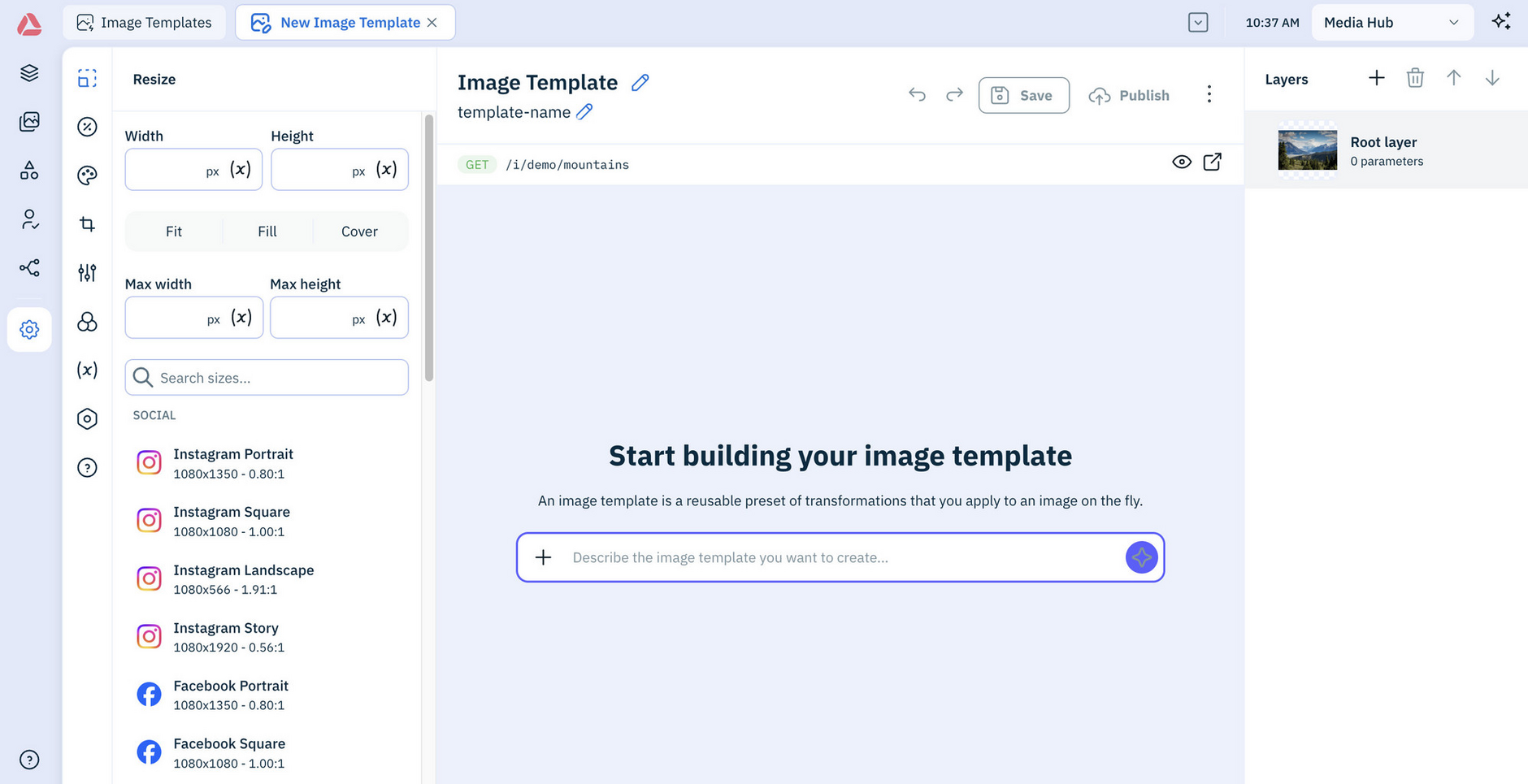
A new template opens with parameter options listed on the left for Resize, Overlays and Badges, Background, Crop and more.
-
Add parameters in whichever way suits you:
- Preview. Choose parameters and see their effect on a test image. See Using preview.
- Parameter view. Add parameters from the menu or type them into the list. See Using parameter view.
- The Assistant. Describe the effects you want. See Using the Assistant.
-
Once parameters are added, save and publish the template.
Add parametersLink copied!
There are a few ways to add parameters to an image template. You can use preview, work in parameter view, or let the Assistant do it, switching between them at any point while building a template.
Use PreviewLink copied!
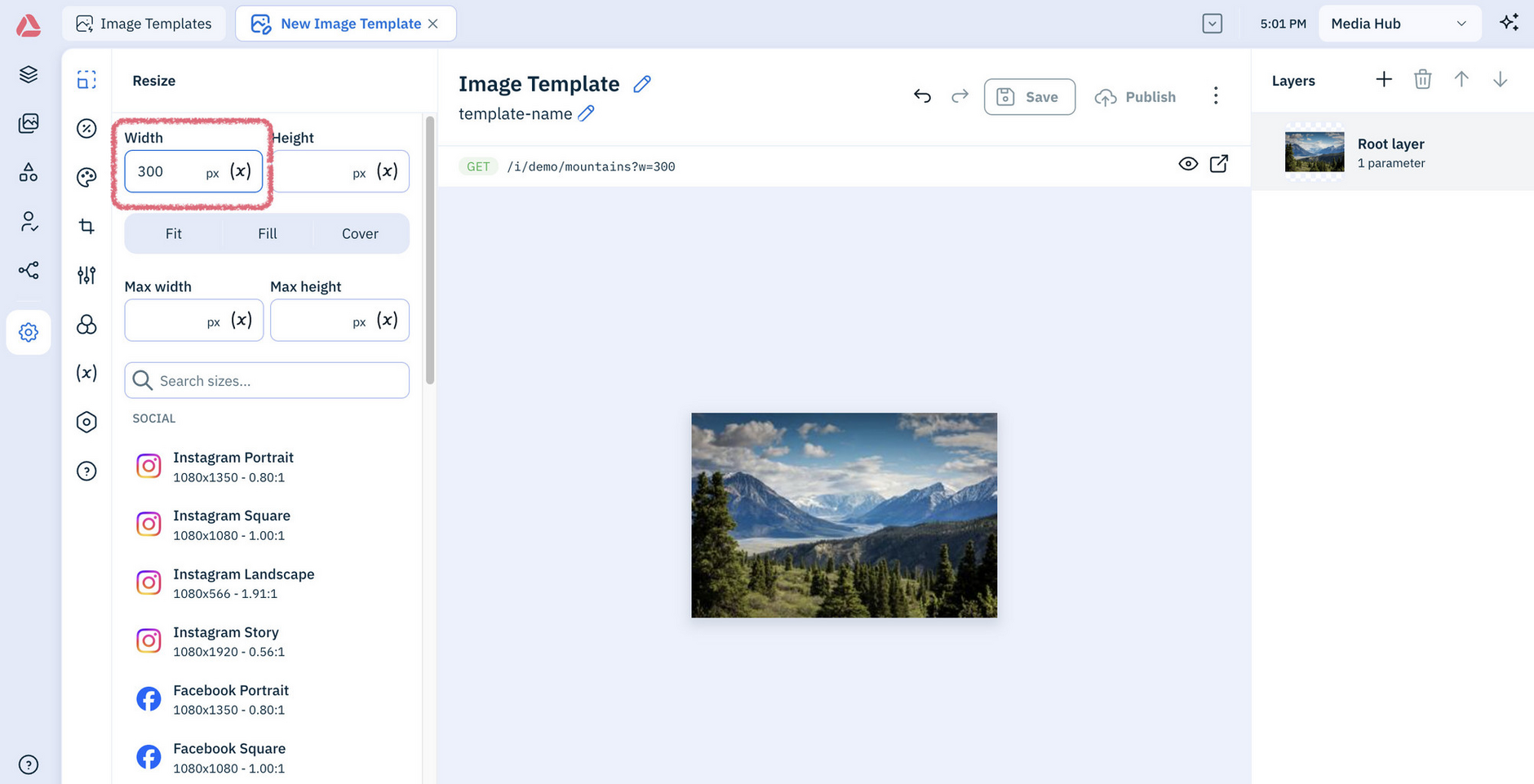
Preview shows your parameters applied to a test image. The image appears as soon as you add your first parameter, so you can see the effect of each one as you go.
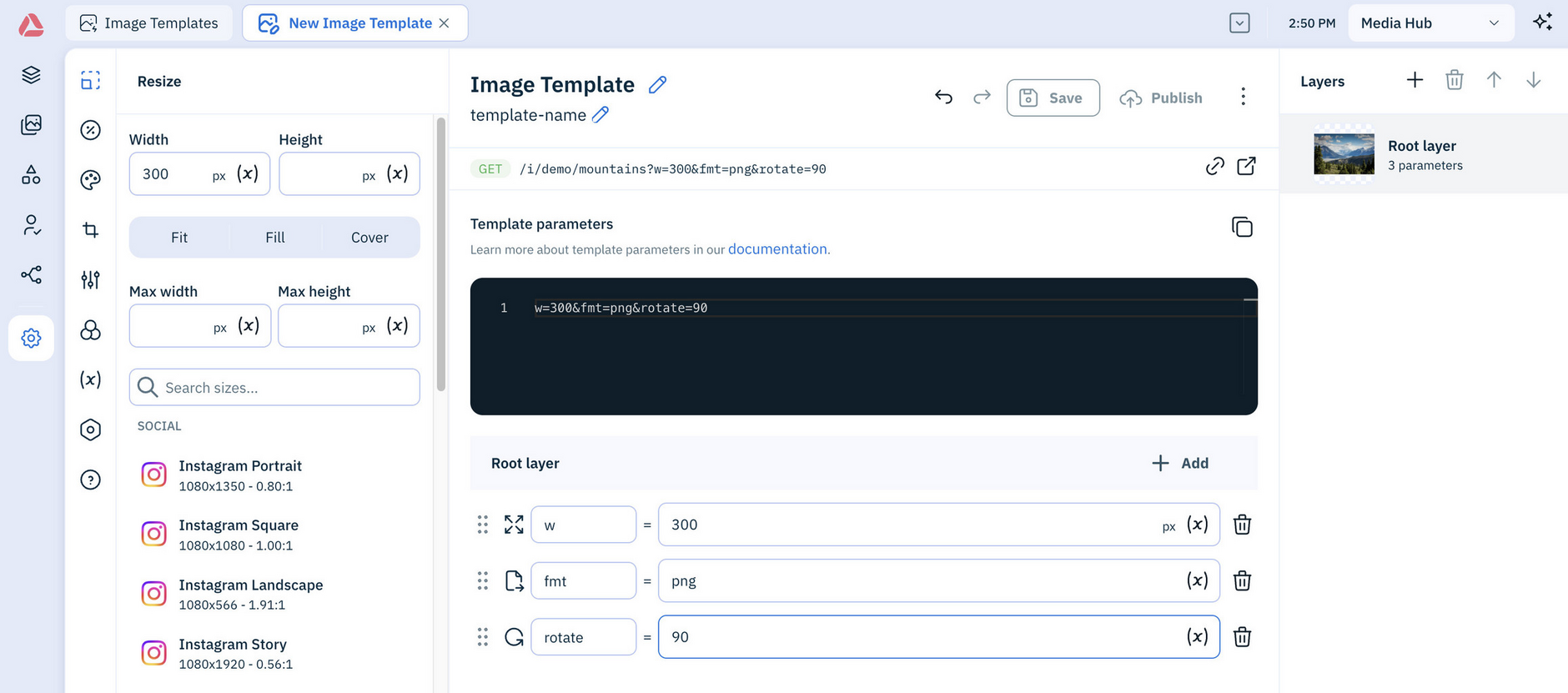
Here, a width parameter is set to 300 and the test image instantly displays, updated to match:
Tip
As you apply parameters, the parameter list updates and a default mountains image shows the effect of the parameters on the image. You can choose the test image.
Choose the test imageLink copied!
You can swap the default test image for one of your own, so you're previewing parameters on something closer to your real content. From the More actions menu, select Choose test image and pick an image from your media library.
Use Parameter viewLink copied!
Parameter view lets you add parameters via a menu, and also by typing them directly into the parameter list.
First, switch to the View Parameters view:
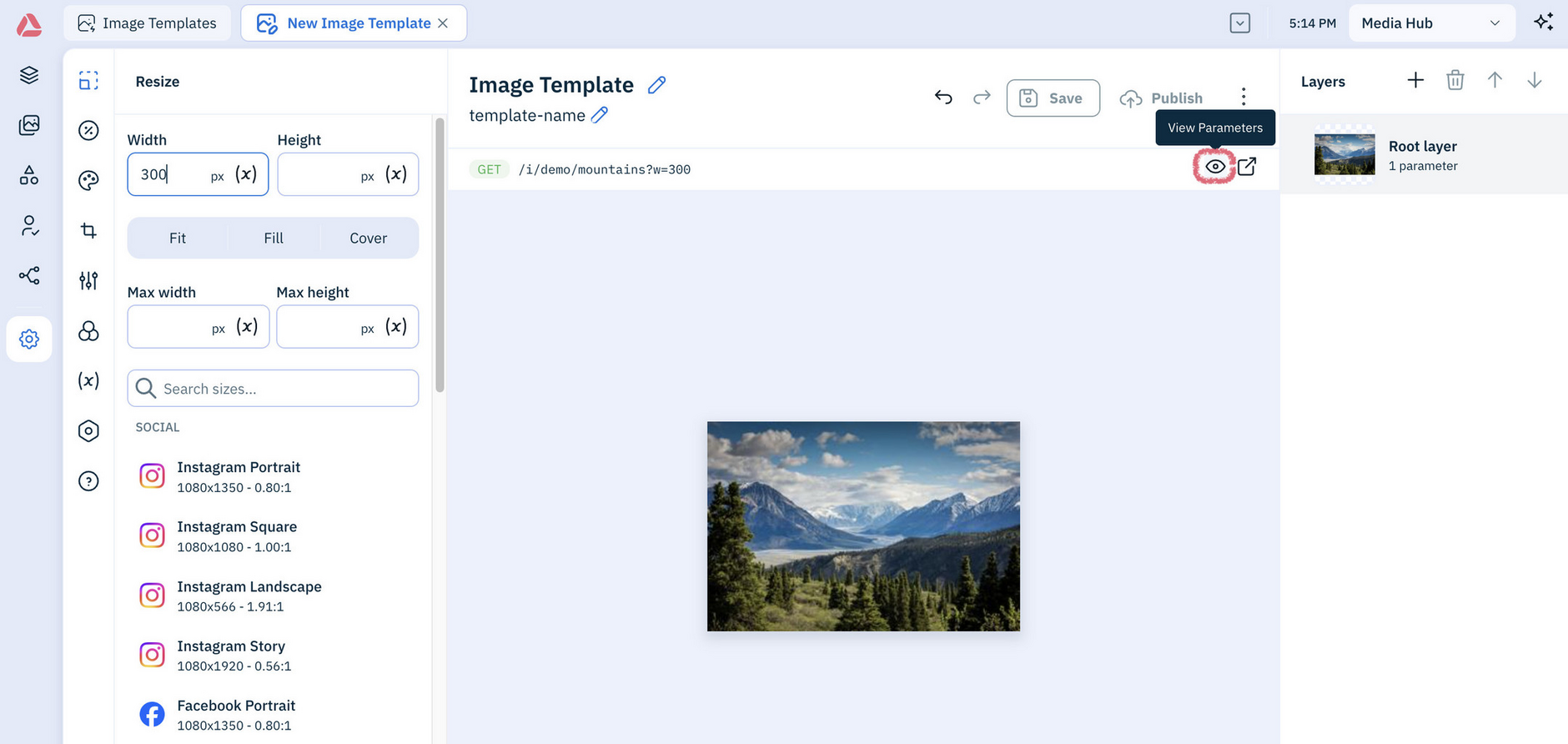
Here a format parameter is being added to the template by clicking Add and choosing a parameter value:
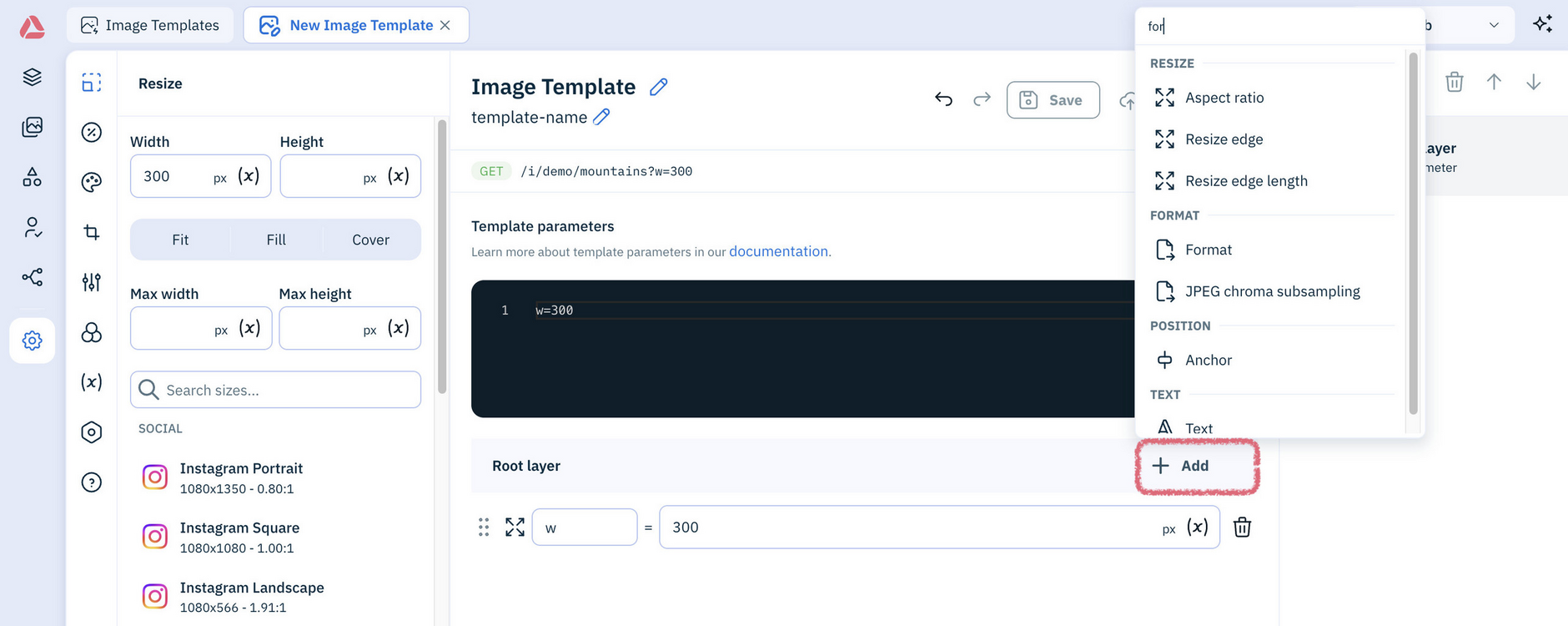
A parameter to rotate the image is also added to the parameter list:
Reorder parameters
In Parameter view, you can reorder parameters in a list by dragging them.
Use the AssistantLink copied!
Instead of choosing parameters yourself, describe the effects you want and let the Assistant build the template.
Try the example templatesLink copied!
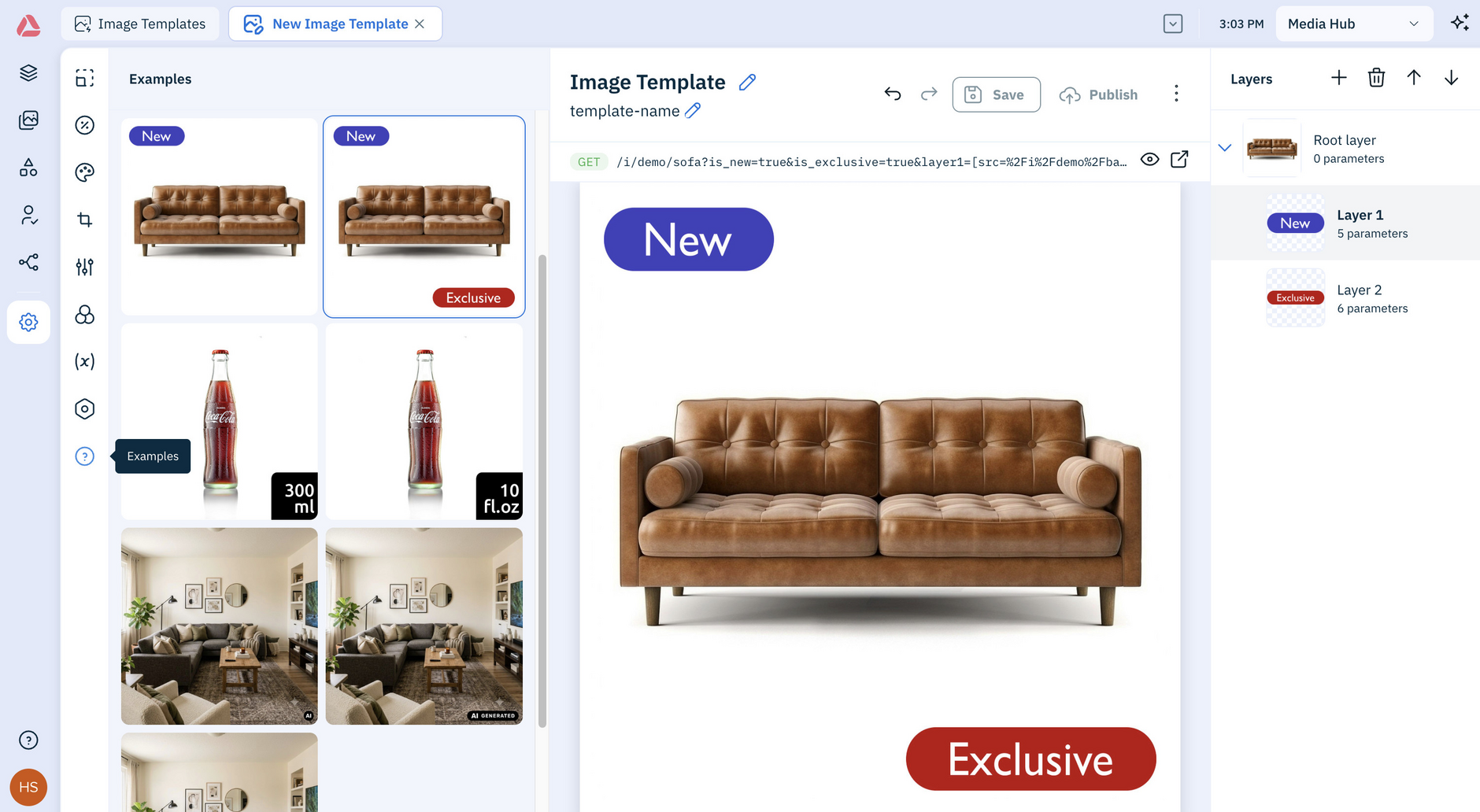
A set of ready-made image template examples are provided for you to experiment with. They're a quick way to see how parameters can be built up, for example using layers to add effects like text, overlays and badges. You can save the example parameters into a template of your own.
Save and publishLink copied!
Give the template a name and a label before you save it. The name is what you reference in your Dynamic Media URLs, as described in Using an image template. The label is what's displayed in the template list.
A template has to be published before you can use it. When you've finished adding parameters and saved, click Publish.
Note
If you make a change to an image template and save it, it must be republished for the changes to be used.
Using an image templateLink copied!
To use an image template in a Dynamic Media URL, add its name to the URL between $ characters.
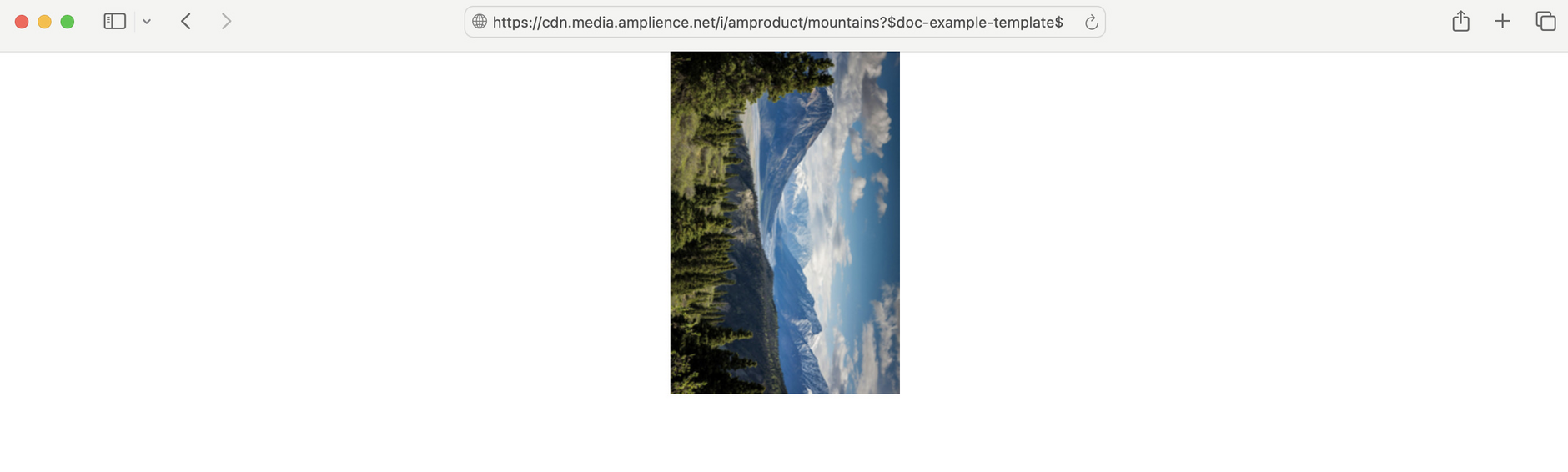
This URL applies the template named doc-example-template:
The width of the image is set to 300, it's returned in PNG format and rotated 90 degrees.
You can use multiple templates in the same URL and combine them with other Dynamic Media parameters:
Tip
Learn more about Dynamic Media URL structure.
Usage notesLink copied!
-
To use an image template with staged content using virtual staging environments, the template must be published first
-
No syntax checking is performed on the image template when saved, so we recommend testing the parameters out before publishing the template
-
fmt=autocannot be included in image templates or root templates. See Amplience Smart Images for more details