Upload and publish assets
Upload your images, video and other media files to Amplience, then publish them so they’re ready to use
Assets are stored independently of the content that uses them, so one asset can be referenced by many pieces of content without being duplicated.
Every asset goes through the upload and publish journey before your audience sees it.
Upload assetsLink copied!
You can upload assets as you need them, or in bulk:
- Upload assets dialog - Upload files as you need them, for example when you need a few images to finish a piece of content.
- Bulk upload - Upload large volumes of assets automatically. See Bulk upload.
You can also use the GraphQL Management API to upload assets and transcode video.
To be published, files must be a supported file type.
Tip
Images can have alt text generated automatically as they're uploaded. Amplience Support can set this up for you. See Processing on upload in Asset settings.
Bulk uploadLink copied!
Most assets are added to Amplience by bulk upload. You upload files to an SFTP location using any standard SFTP client, and Amplience ingests them through upload connectors, usually every hour.
Ingesting involves more than uploading. As files come in, they can be processed automatically, for example by transcoding videos. To set up bulk upload, see Amplience DAM tools in the classic platform docs.
Manual uploadLink copied!
Add files to the Assets library using the Upload assets dialog.
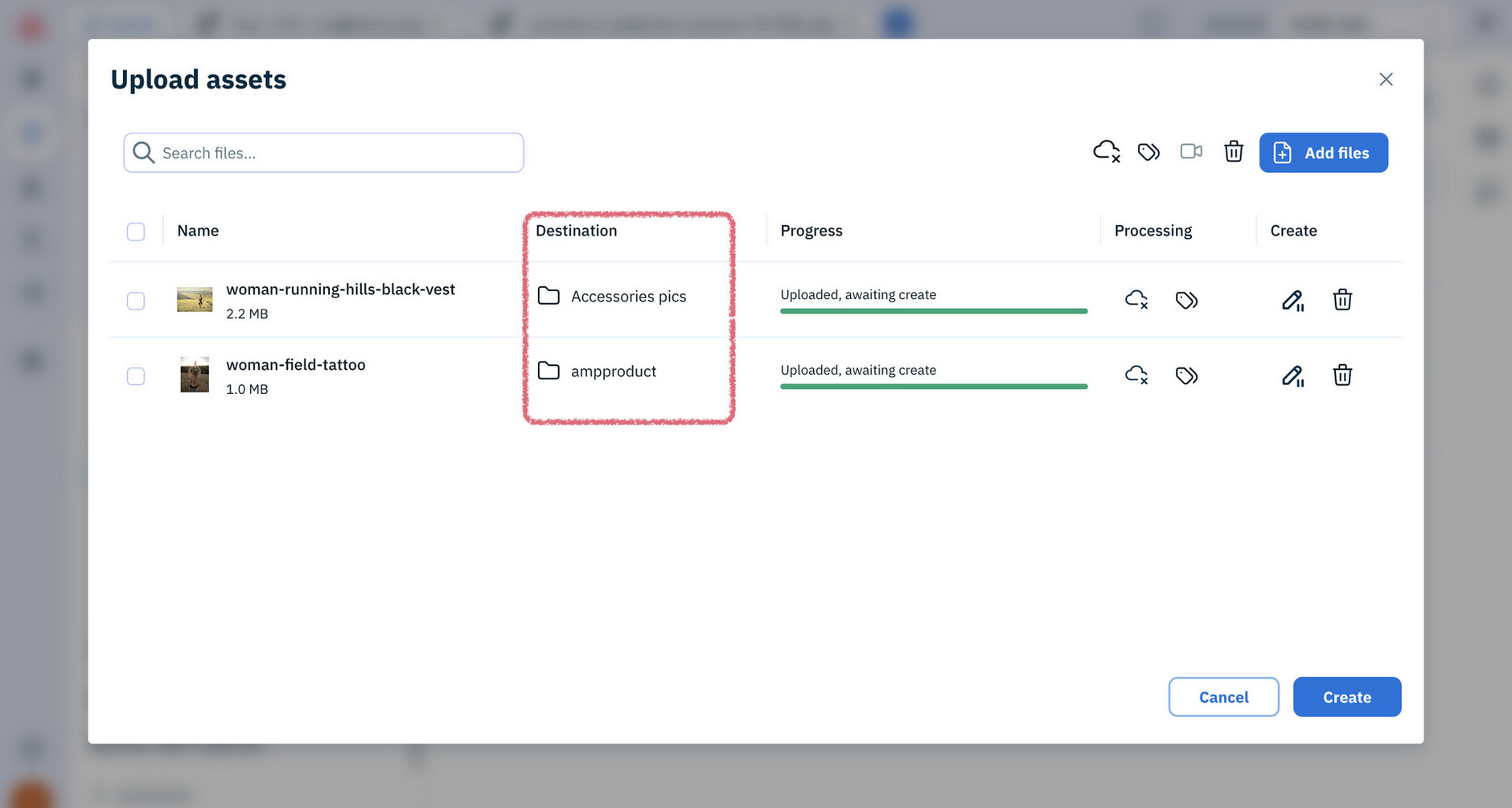
When you upload through the Upload assets dialog, files are added to the folder currently selected in the Assets library.
To add files for another folder, close the dialog, select the folder in the Assets library, then reopen the Upload assets dialog and click Add files. Files you’ve already added stay in the list with their original folder, so you can queue files for several folders and upload them all at once.
Every filename has to be unique and free of reserved characters, so it's worth settling on a naming convention with your team before you start uploading in volume.
Publish assetsLink copied!
Uploaded files need to be published to make them available to your site. Publishing generates the asset's URL and makes it available to serve. Unpublishing removes that URL, while keeping the original file in place, ready to publish again when you need it.
In the library, an icon on each asset shows its publish status.
| Icon | Publish status | Description |
|---|---|---|
 | Published (latest version) | The latest version of the asset is published |
 | Published (earlier version) | The asset has changed since it was last published, so an earlier version is currently published. |
Published assets are served through a content delivery network and cached on edge servers close to your users. Because copies are cached, an updated asset won't appear straight away - it becomes visible once its Time to Live (TTL) expires, or sooner if you purge it.
Read more about Caching and purging in our classic docs.